How to Connect Cursor to Stock Trading Data (MCP Setup, 2026)
Give Cursor's AI access to historical stock market data via TradeOdds' MCP server. Configure once, query during any coding session. Five minute setup.
Cursor’s Composer can call MCP servers, which means you can give it direct access to historical stock market data, ranked universe scans, and SQL against a real database — all without leaving your editor. If you’re building a trading bot, a backtest script, or just experimenting, this turns Cursor into a quant-grounded coding assistant.
Prerequisites
- Cursor installed (any recent version supports MCP).
- A TradeOdds account with Pro tier or above ($29/month for MCP, $99/month Power User for SQL).
- Node.js 18+ installed locally.
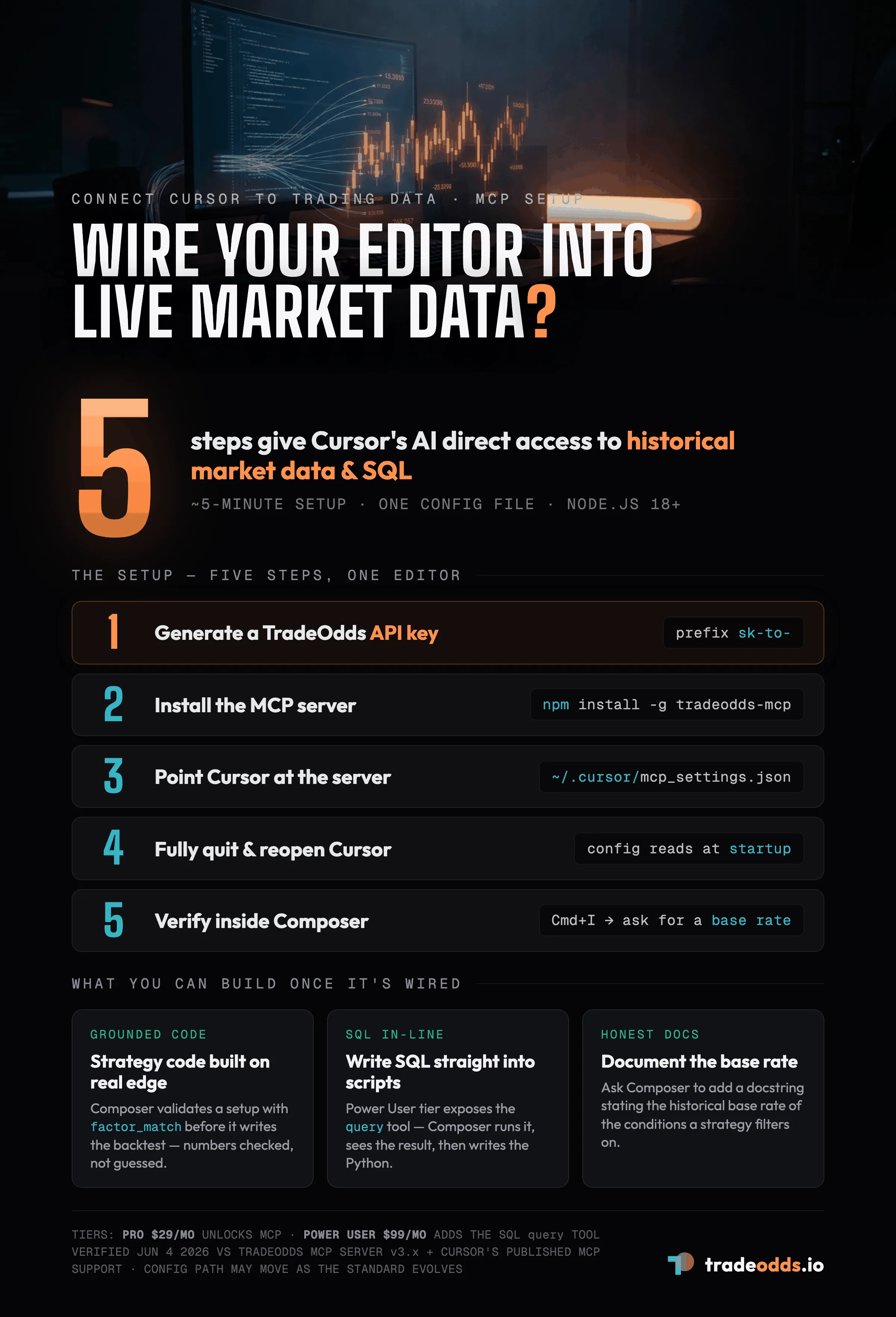
Step 1: Generate a TradeOdds API key
In TradeOdds: Account → API Keys → Create new key. The full key shows once. Copy it and store securely. The prefix is sk-to-.
Step 2: Install the MCP server
npm install -g tradeodds-mcpVerify with tradeodds-mcp --version.
Step 3: Configure Cursor
Cursor reads MCP config from ~/.cursor/mcp_settings.json (global) or .cursor/mcp_settings.json in your project directory (per-project). Project-scoped config is recommended for trading bot codebases so the integration travels with the repo.
Add the following:
{
  "mcpServers": {
    "tradeodds": {
      "command": "tradeodds-mcp",
      "env": {
        "TRADEODDS_API_KEY": "sk-to-your-key-here"
      }
    }
  }
}
Replace the placeholder with your real key. If you commit this file to git, the per-project version should reference an environment variable instead of the literal key.
Step 4: Restart Cursor
Cmd+Q (macOS) or fully close (Windows/Linux), then reopen.
Step 5: Verify
Open Composer (Cmd+I) and ask:
“Use the TradeOdds tools to check the historical 5-day win rate for AAPL when RSI is in the oversold zone.”
Cursor should call analyze or query and return real numbers. If it says it can’t access market data, restart Cursor or check the config file path.
Why this is useful in a coding workflow
Cursor with TradeOdds MCP lets you do things like:
- Generate strategy code grounded in real edge. Ask Composer to write a backtest for a setup it just validated via
factor_match. Numbers are checked, not guessed. - Write SQL directly into your scripts. Power User tier exposes the
querytool. Composer can write the SQL, run it, see the result, and then write Python code that uses the same query. - Document strategies with real data. Ask Composer to add a docstring to your strategy describing the historical base rate of the conditions it filters on.
Example: building a Factor Match-driven scanner
In a Python file, prompt Composer:
“Write a script that calls the TradeOdds REST API to run Factor Match every morning at 9:25am ET for stocks above $10 with RSI oversold + VIX elevated + bull regime. Save results to a CSV and post the top 5 to a Slack webhook.”
Composer will use the TradeOdds MCP tools to confirm the schema and parameters, then write the script — typically calling tradeodds-mcp to verify a sample call before generating code that uses the REST endpoint directly for production runs.
Troubleshooting
Composer doesn’t see the tools. Full quit + relaunch. Cursor reads MCP config at startup.
Per-project config not picked up. Verify the file is at .cursor/mcp_settings.json in the project root (not the user’s home directory). Project-scoped config requires Cursor to be opened with that project as the workspace root.
Auth errors mid-conversation. API key likely revoked or rotated. Generate a new one and update the config.
Bonus: pair with Cursor Rules
Add a .cursorrules file to your repo with project-level guidance:
This project is a stock trading bot. Always use the TradeOdds MCP tools
to validate historical base rates before generating strategy code. Use
fwd_5d_pct from daily_metrics as the canonical 5-day forward return.
Composer will reference these rules in every conversation in this workspace, ensuring every code generation step pulls real data instead of fabricating expected outcomes.
FAQ
Do I need a paid TradeOdds plan to connect Cursor to trading data?
Yes. The MCP server requires the Pro tier at $29/month, and the SQL query tool requires the Power User tier at $99/month. You also need Cursor installed and Node.js 18 or newer.
Where does Cursor store its MCP configuration?
Cursor reads MCP config from ~/.cursor/mcp_settings.json globally, or from .cursor/mcp_settings.json in a project directory for per-project scope. Project-scoped config is recommended for trading-bot codebases so the integration travels with the repo.
How long does the Cursor MCP setup take?
About five minutes across five steps: generate a TradeOdds API key, install the MCP server, add it to your Cursor config, fully restart Cursor, and verify the connection inside Composer.
Cursor is not seeing the TradeOdds tools — how do I fix it?
Fully quit and relaunch Cursor, since it only reads MCP config at startup. Confirm the config file path is correct, and if you get auth errors mid-conversation, generate a new API key and update the config.
What can Cursor do once it is connected to TradeOdds?
Composer can generate strategy code grounded in real edge by validating setups with factor_match before writing a backtest, run SQL directly through the query tool on the Power User tier, and document strategies with real historical base rates.
Verification. Setup steps verified on June 4, 2026 against TradeOdds MCP server v3.x and Cursor’s published MCP support. Cursor’s config file location may move as MCP standards evolve; check Cursor’s docs if
~/.cursor/mcp_settings.jsondoesn’t work.
Disclaimer. TradeOdds provides historical analysis for informational purposes only. This is not investment advice. Past performance does not guarantee future results.
Try It Yourself
Run a free historical analysis on any stock, ETF, or crypto.
Start Free AnalysisNo account required. 10 free lifetime analyses.